Listening & playlists
Send a recording to a Yoto card
Link your Yoto once. After that, any published recording is one tap from being a card in your Yoto app.
-
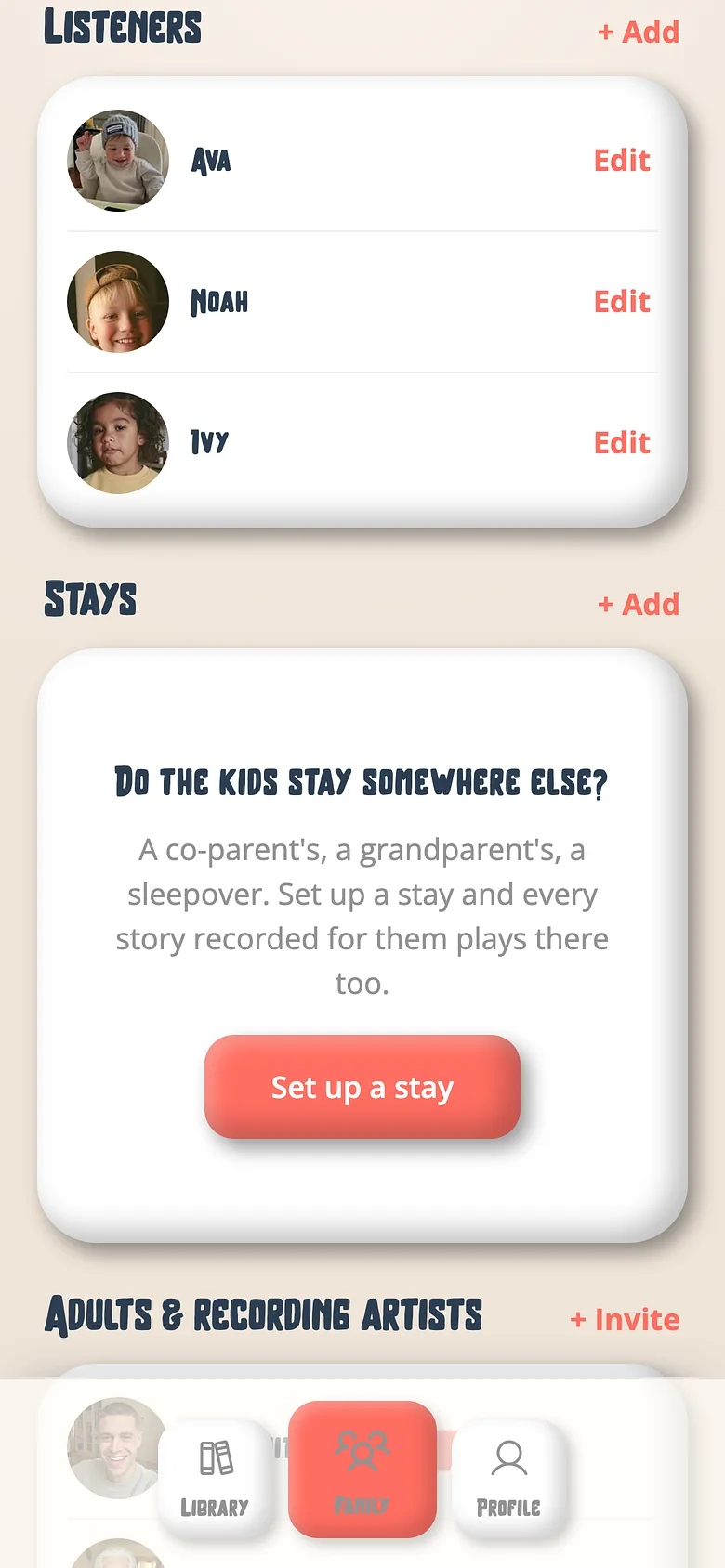
Open Yoto & tonies
Family tab → Family settings → Yoto & tonies. A family admin does this part. -
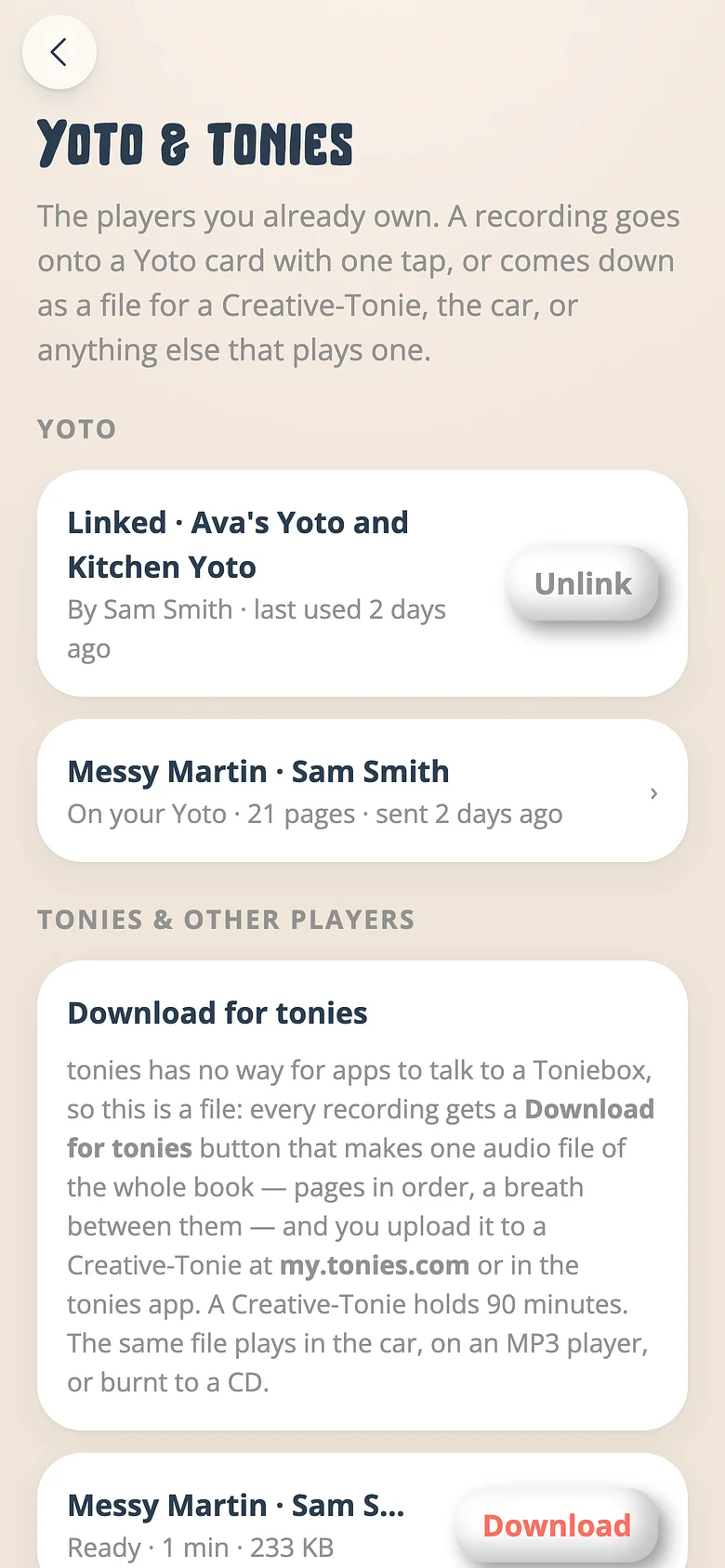
Link your Yoto
Press Link Yoto. Yoto's own sign-in opens; sign in to the account behind your player and allow Voicebooks. You come straight back, and your players are listed by name. -
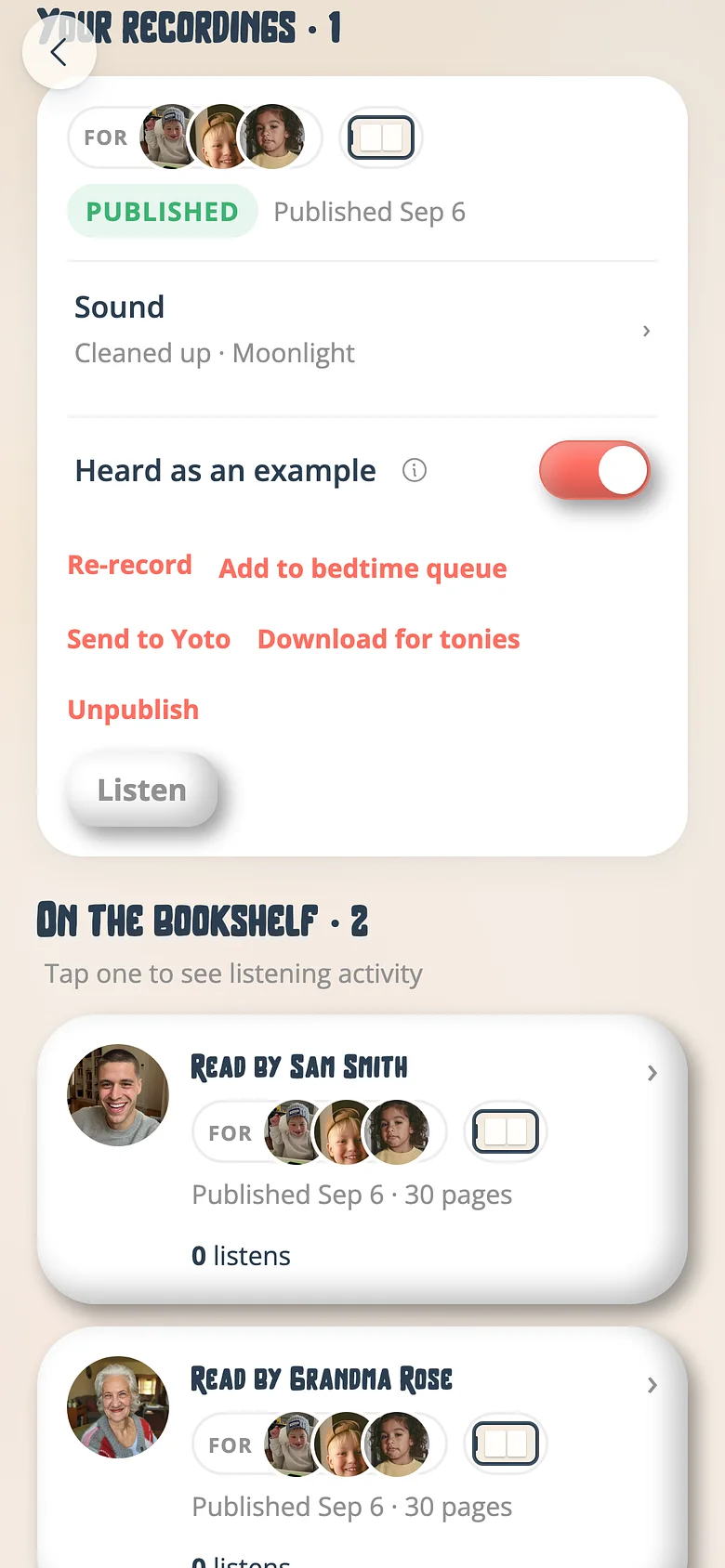
Press Send to Yoto
On any published recording's card — on the book's screen — or on a playlist, press Send to Yoto. Every kept page goes up as a track. -
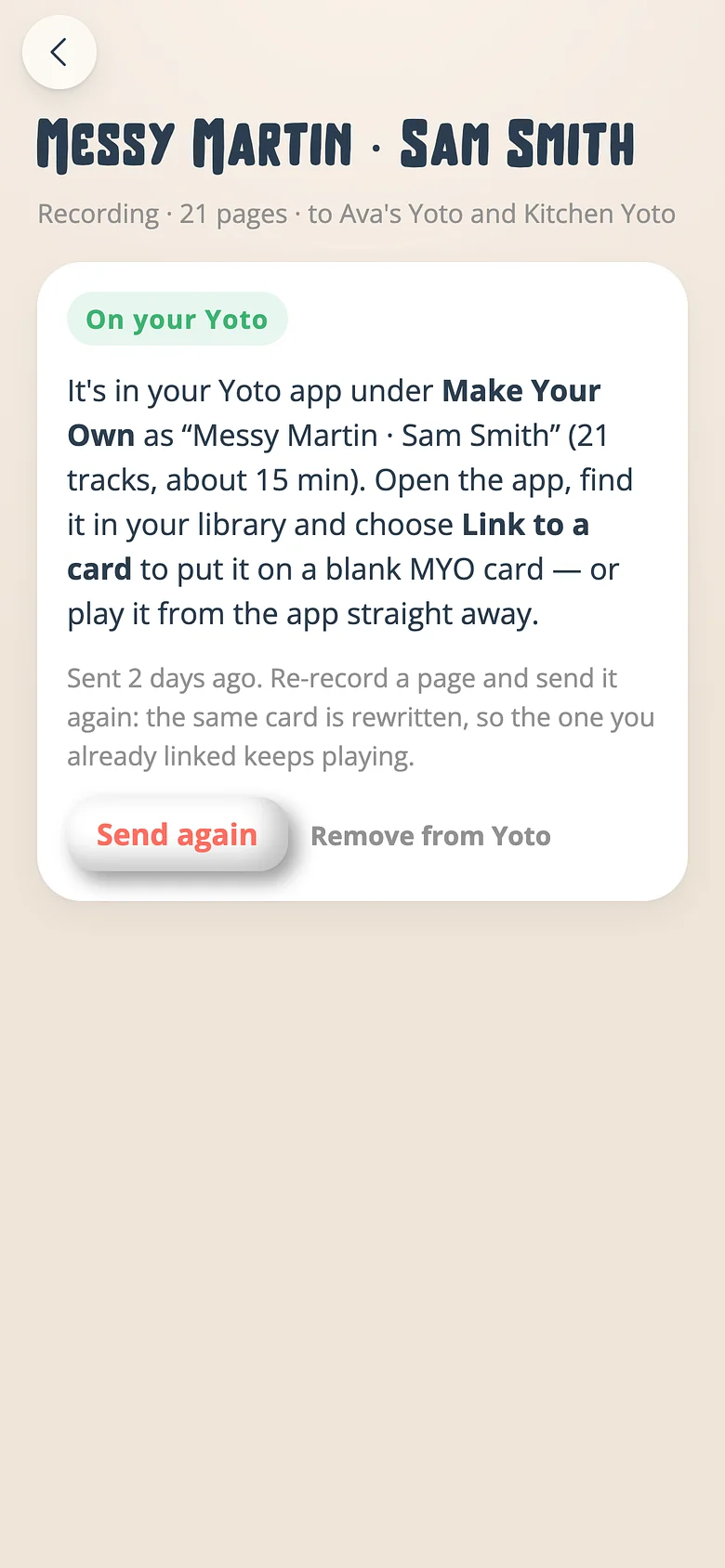
Wait for "On your Yoto"
The card's screen counts the pages as they land. It usually takes a few seconds a page. You can leave and come back; it finishes on its own. -
Link it to a card in the Yoto app
In the Yoto app, open your library and find the new item under Make Your Own. Choose Link to a card and hold a blank MYO card to your player — or press play in the app.
Good to know
- Re-record a page, then press Send again on the card's screen. The same card is rewritten; the physical card keeps working.
- A playlist goes as one card with a chapter a book. The player's arrows skip pages; the display shows which book you're on.
- Remove from Yoto on the card's screen deletes it from your Yoto library. Unlinking your account doesn't — the cards were yours the moment they landed.
Next
Put a recording on a Creative-Tonie
tonies has no way for apps to reach a Toniebox, so this is a file and a short upload. Voicebooks makes the file; you carry it across.
Read the guideBuild a bedtime playlist
Three books in order is a routine. Save it and it's waiting next week.
Read the guideListen without the screen
The story without the pages. For bedtime, the car and small speakers.
Read the guideTry it with a real book
Free to start. The first page takes a minute.