Yoto & tonies
Grandma's voice, on the Yoto by the bed
Millions of bedrooms already have a screen-free player in them. One tap writes a Voicebooks recording onto a Make Your Own card in your Yoto app; one download puts it on a Creative-Tonie. The phone is for making the recording — the box is for the child.
Why
You bought the box so there'd be no screen. Keep it that way.
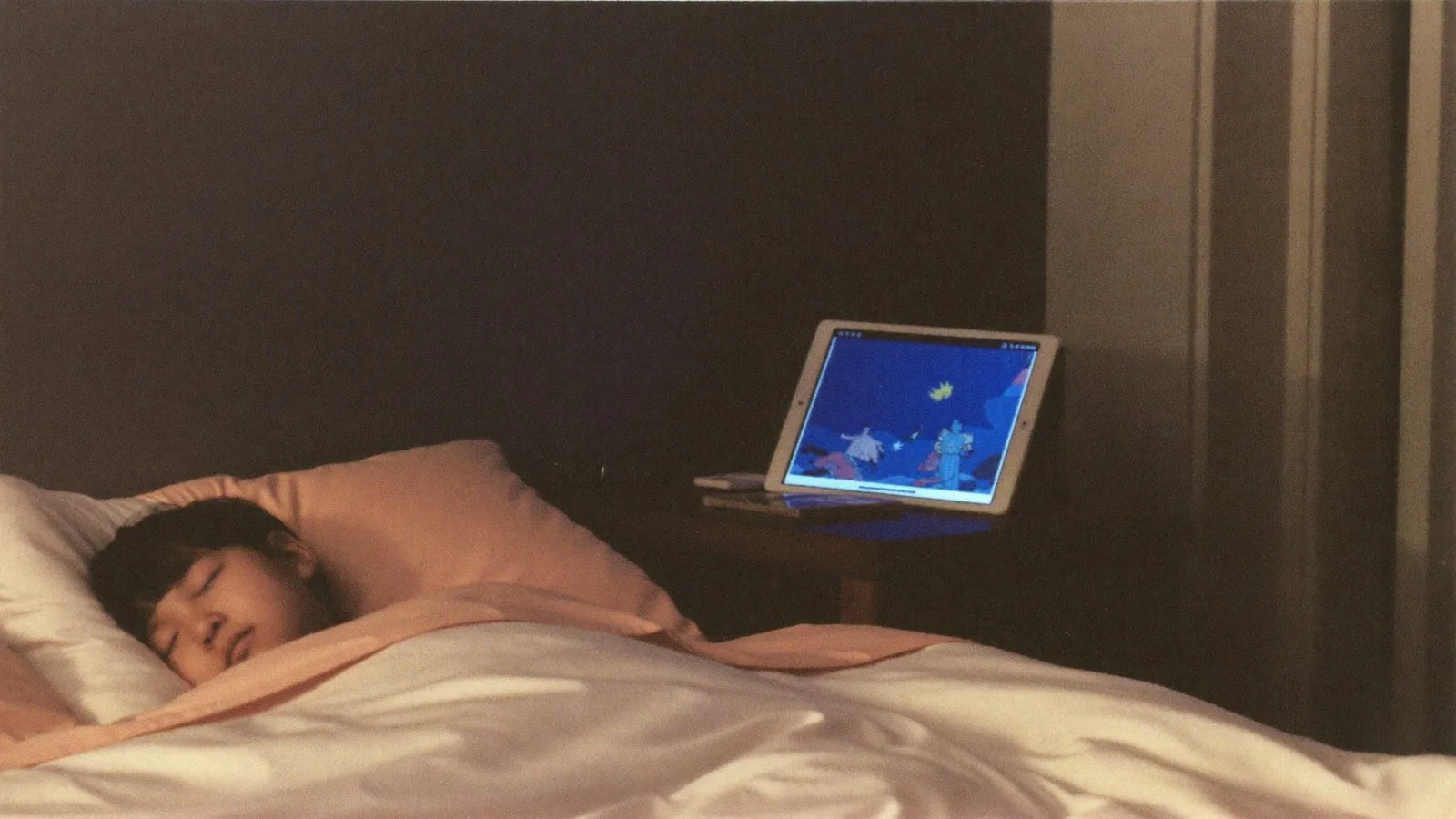
The families most careful about bedtime already own a Yoto or a Toniebox — a player a three-year-old runs alone, with nothing to swipe. Voicebooks has always been a phone, and a phone at bedtime is exactly what those families were avoiding.
So the recording goes to the box instead. Grandma records on her phone, in her kitchen, in her own time. The child pushes the card in. Nobody is holding anything with a screen.
Yoto
One tap, and it's a card
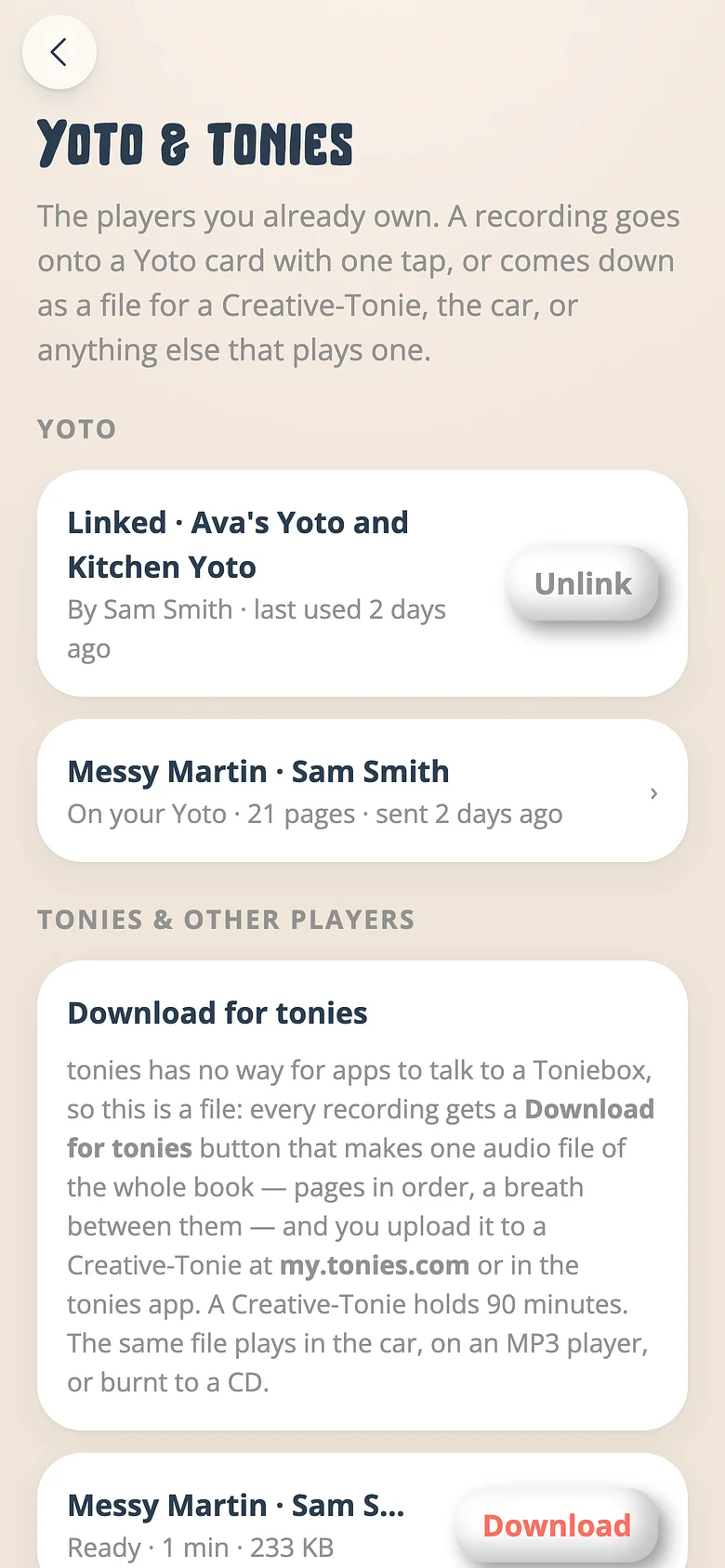
Yoto's public API lets an app write straight into your Make Your Own library. Link your Yoto account once; every recording gets the button.
-
Link your Yoto
Family tab → Yoto & tonies → Link Yoto. You sign in to Yoto, say yes once, and the players in your account show up by name. -
Send a recording
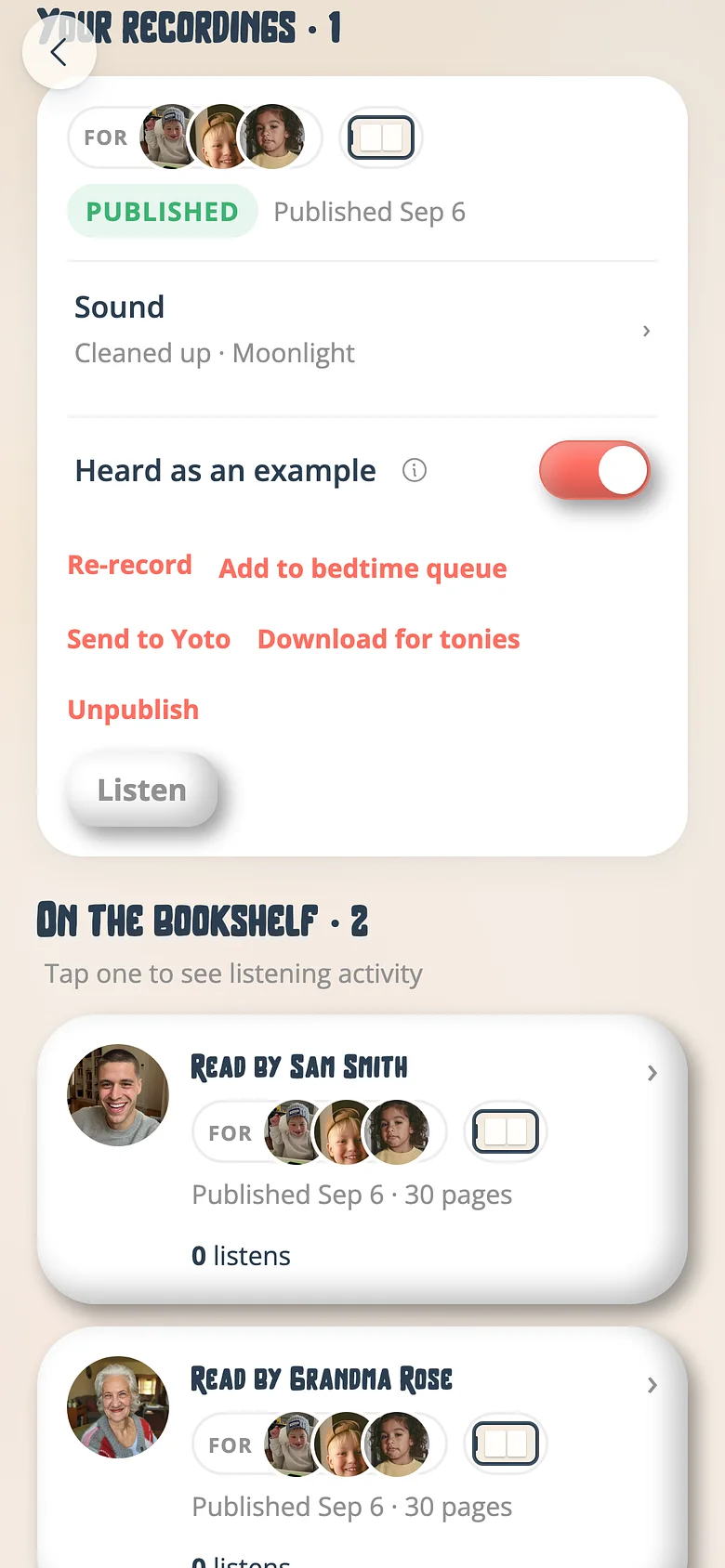
On any published recording — yours, Grandma's, a whole bedtime playlist — press Send to Yoto. Every page goes up as a track, the book as a chapter, so the player's buttons turn the pages. -
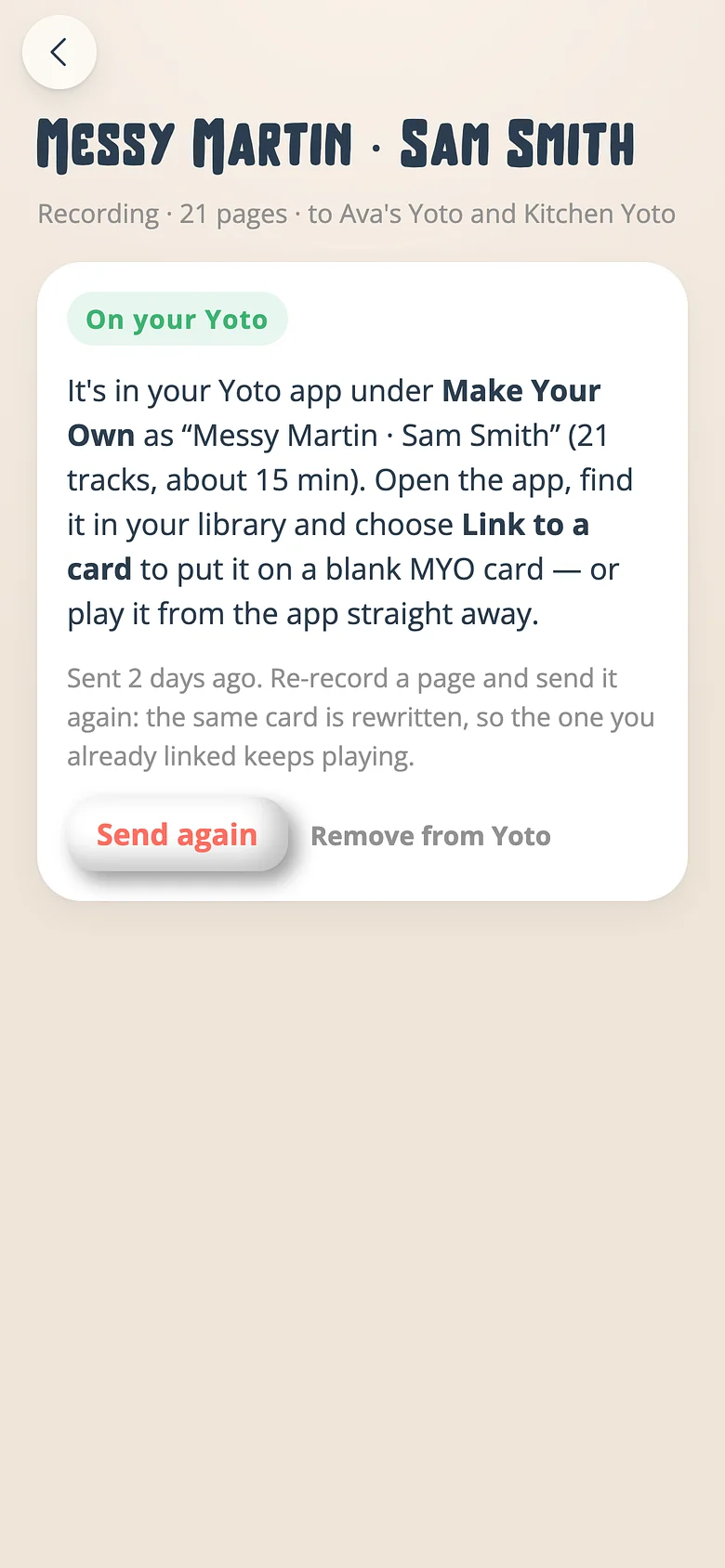
Watch it land
The card's screen fills in page by page. When it says On your Yoto, open the Yoto app, find it under Make Your Own and link it to a blank card — or just play it from the app. -
Re-record, send again
Fluffed page nine? Record it again and press send again. The same card is rewritten, so the one already in the drawer keeps playing — the new version.
tonies
One file, for a Creative-Tonie
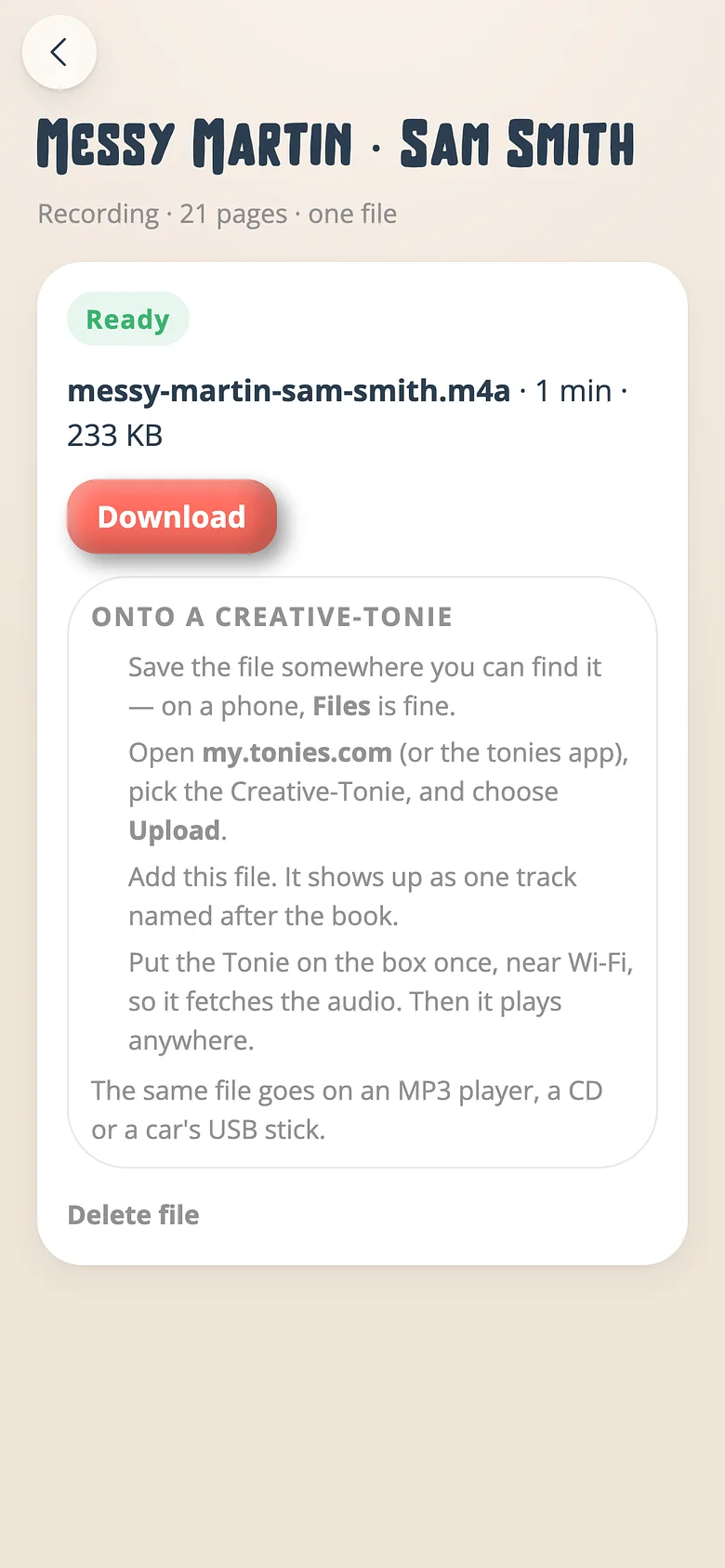
tonies keeps its box to itself — there is no way for an app to talk to it. So Voicebooks gives you the next best thing, a single audio file made for it.
-
Download for tonies
On a recording or a playlist, press Download for tonies. Voicebooks joins every page into one file, in order, with a breath between them. -
Grab the file
The file's screen says when it's ready, how long it runs, and whether it fits the ninety minutes a Creative-Tonie holds. Download it to your phone or laptop. -
Upload it to the Tonie
Open my.tonies.com or the tonies app, choose the Creative-Tonie, upload the file. Set the Tonie on the box once near Wi-Fi and it's there for good.
The details
What you get on the box
Exactly what the app plays
The cleaned-up takes, with the music under them if the recording has any. What goes on the card is what the family hears at home.
Learn moreA page is a track
On a Yoto card each book is a chapter and each page a track, so the arrows turn the pages and the display counts the books.
A whole playlist at once
Send tonight's queue or a saved playlist as one card, a chapter a book — or as one file, long enough for a Creative-Tonie's ninety minutes.
Learn moreRewritten, never duplicated
Sending a recording again updates the card it made the first time. Your Yoto library never fills with copies.
A file is a file
The tonies download is a plain audio file. It plays in the car, on an MP3 player, or burnt to a CD for the grandparent who has none of these.
Only what's published
A draft can't be sent anywhere. Yoto gets a card only when the reading is finished, kept and published — the same rule as the shelf.
Go deeper
How-to
Send a recording to a Yoto card
Link your Yoto once. After that, any published recording is one tap from being a card in your Yoto app.
How-to
Put a recording on a Creative-Tonie
tonies has no way for apps to reach a Toniebox, so this is a file and a short upload. Voicebooks makes the file; you carry it across.
Feature
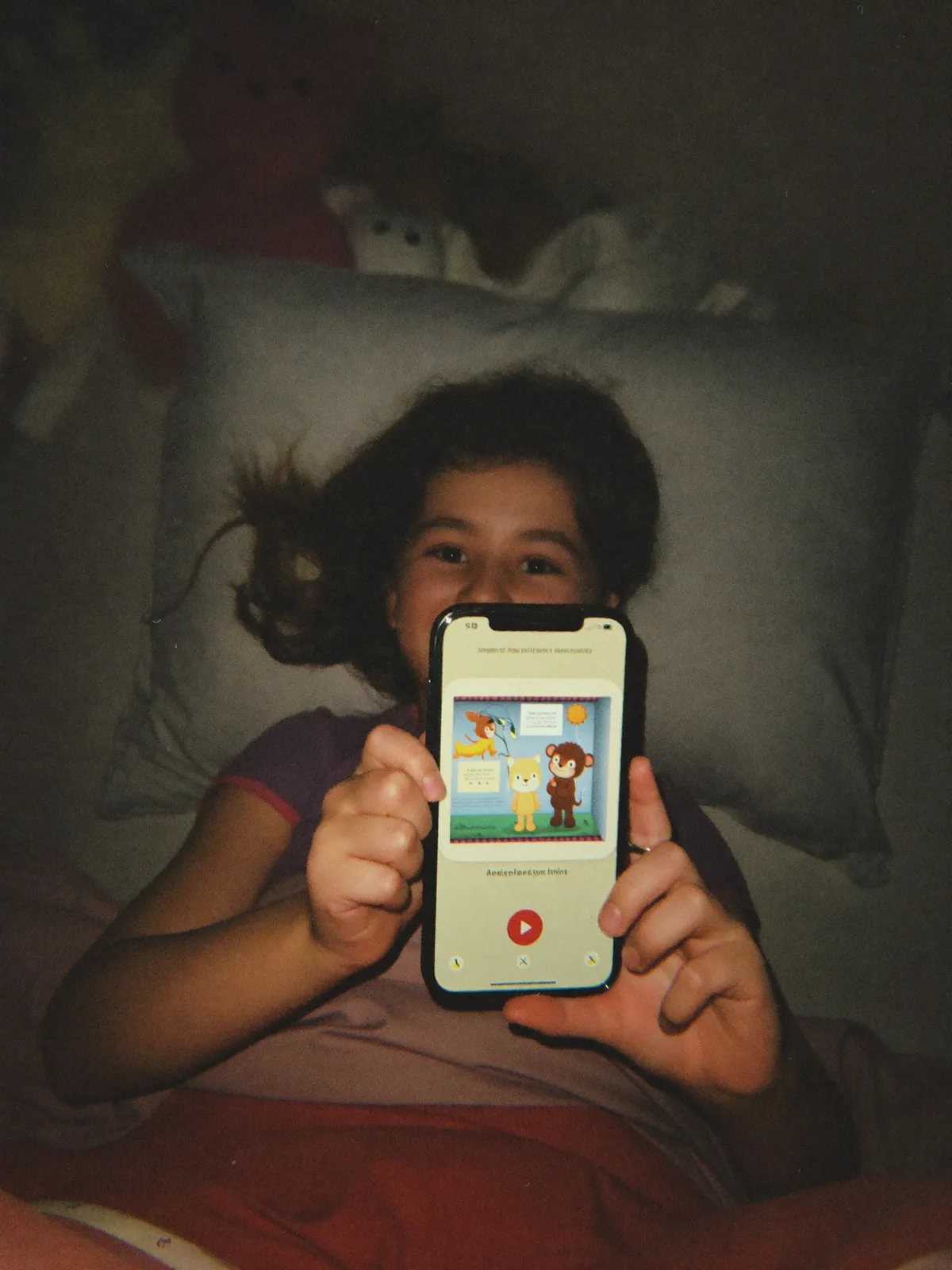
Listen-only bedtime
Your voice with the lights off — no screen needed
Feature
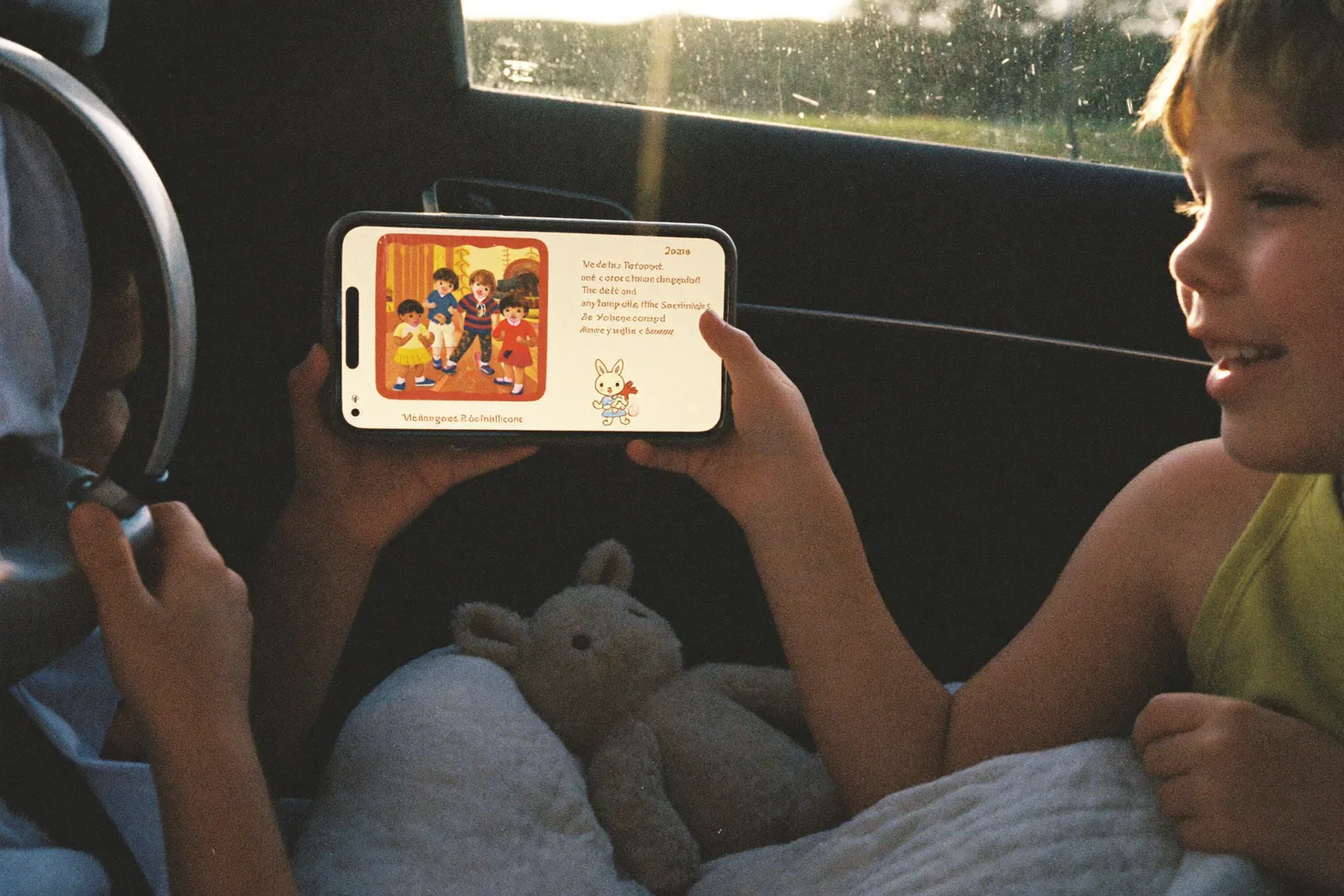
Playlists
Tonight's books, in order, saved for next time
The box is already by the bed
Record one book tonight. It can be on the card by the time the bath is run.